> ## Documentation Index
> Fetch the complete documentation index at: https://docs.admanage.ai/llms.txt
> Use this file to discover all available pages before exploring further.
# Zapier Integration
> Connect AdManage to Zapier to automate your ad workflows
## Connect AdManage to Zapier
1. Sign in to your AdManage account and navigate to the [API Keys page](https://admanage.ai/connect)
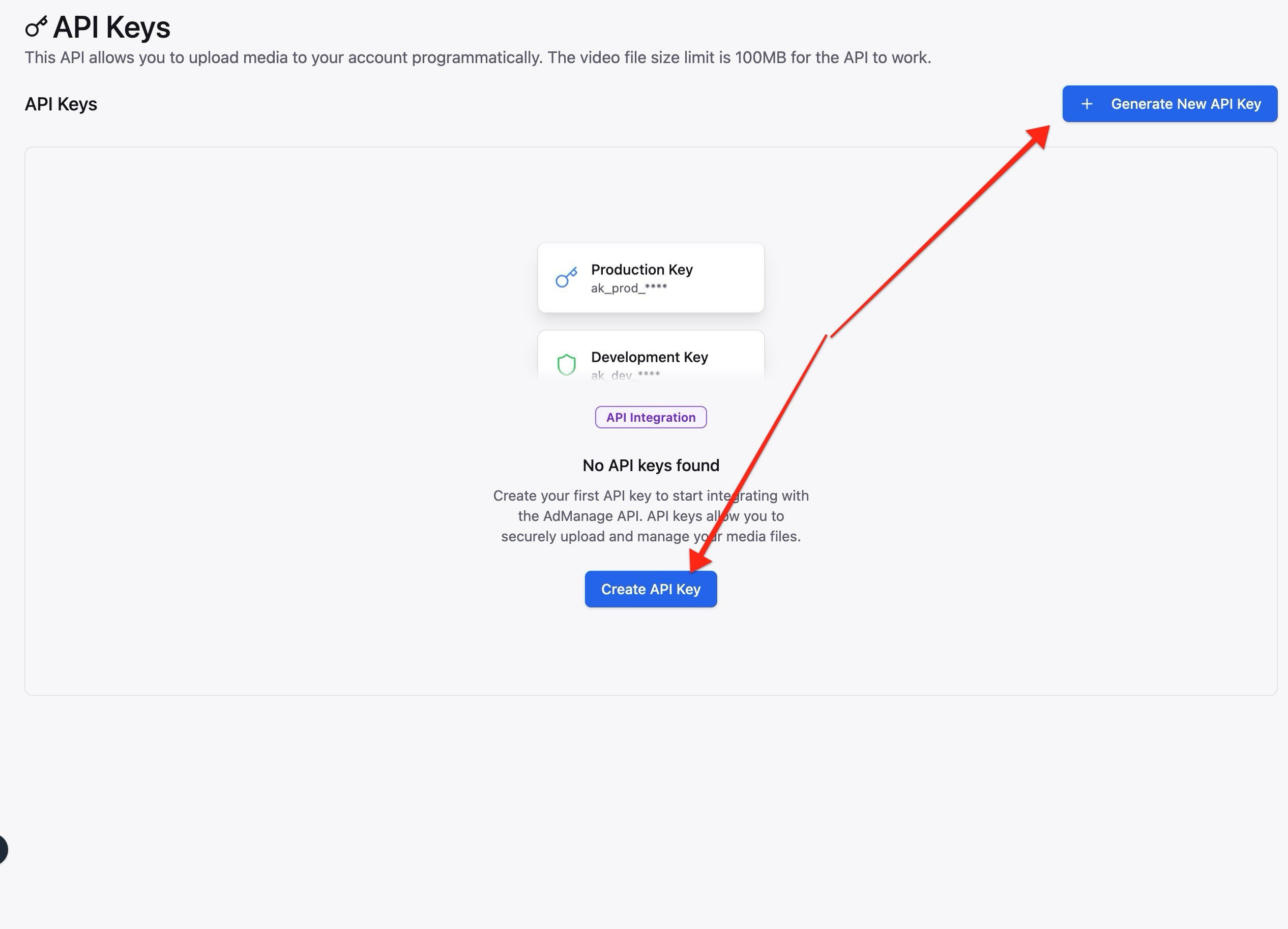
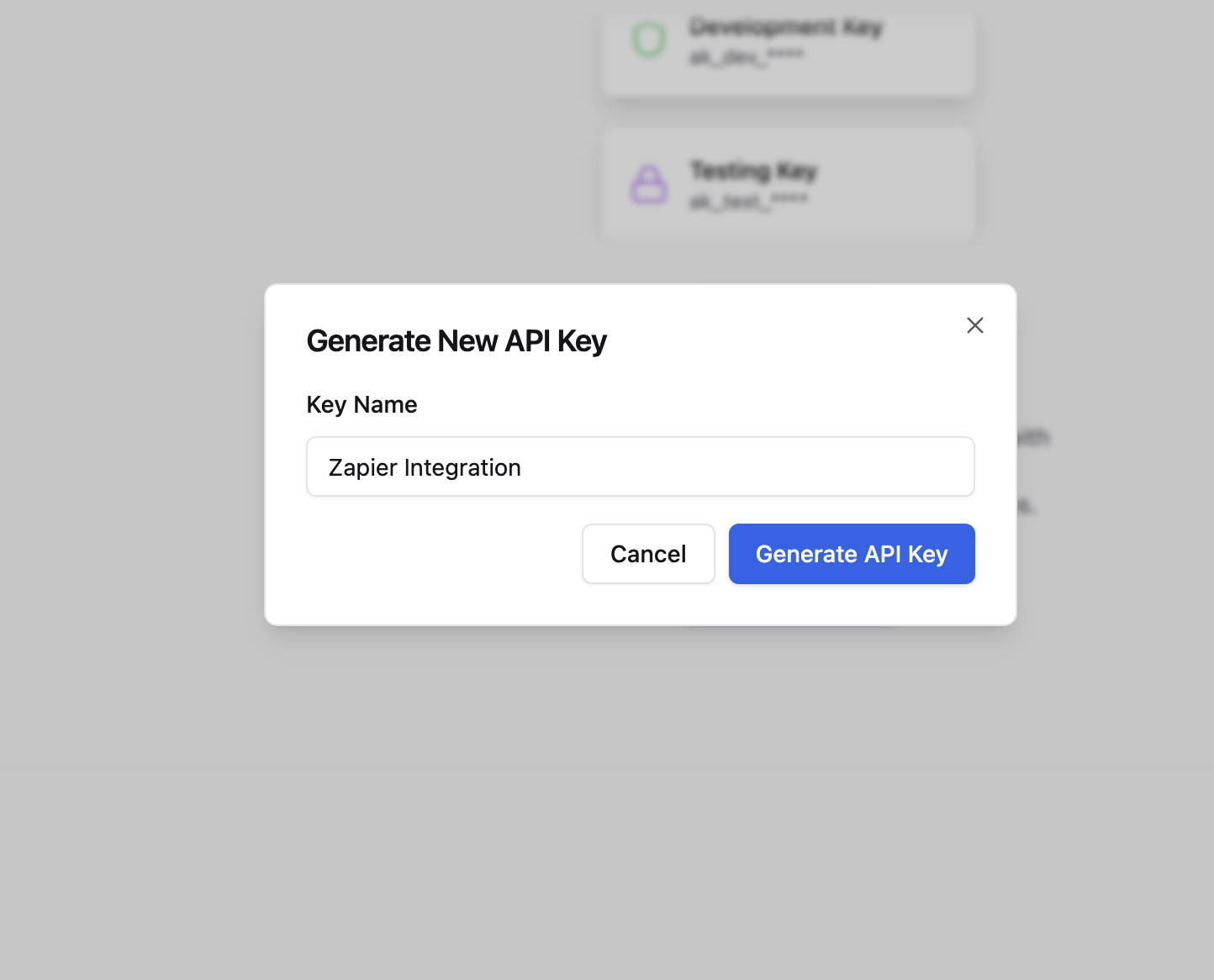
2. Create a new API key by clicking "Create API Key"
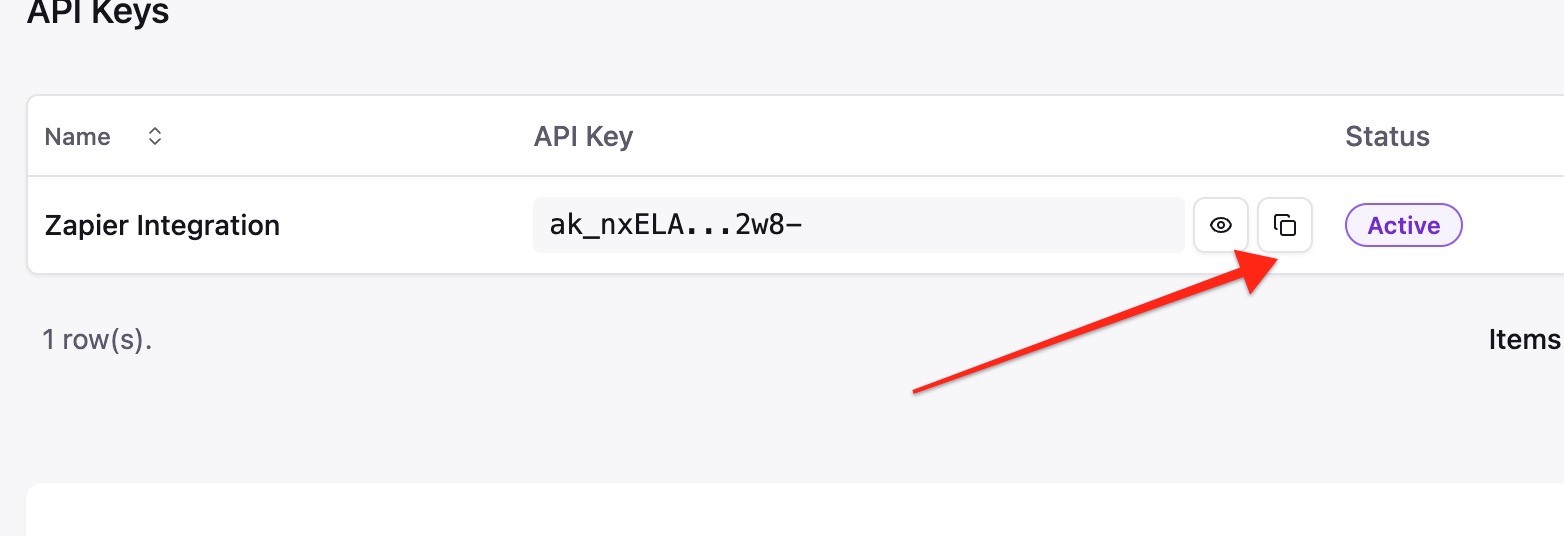
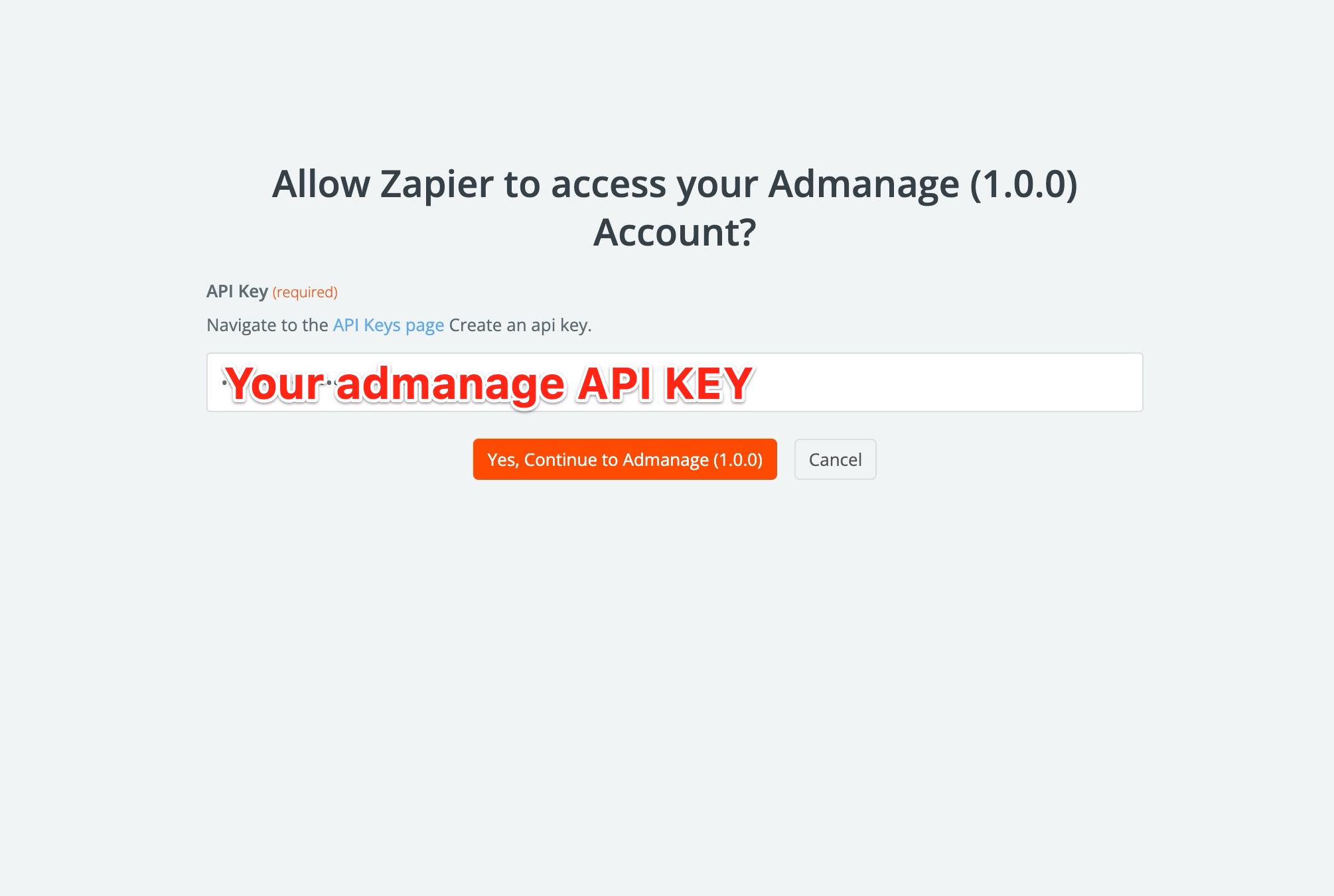
3. Copy your API key
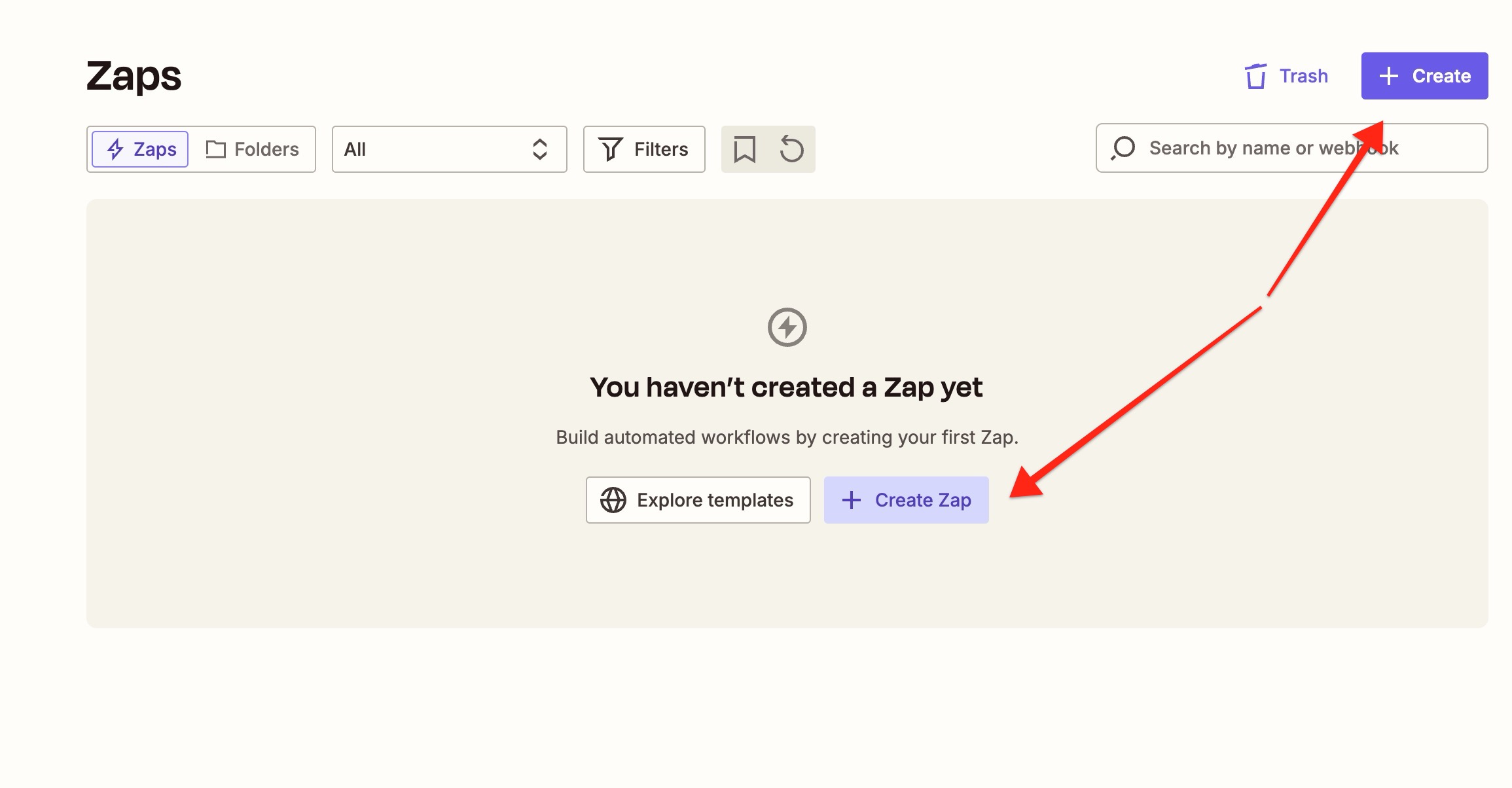
4. Go to [Zapier](https://zapier.com) and click "Create Zap"
5. Search for "AdManage" in the Zapier app store
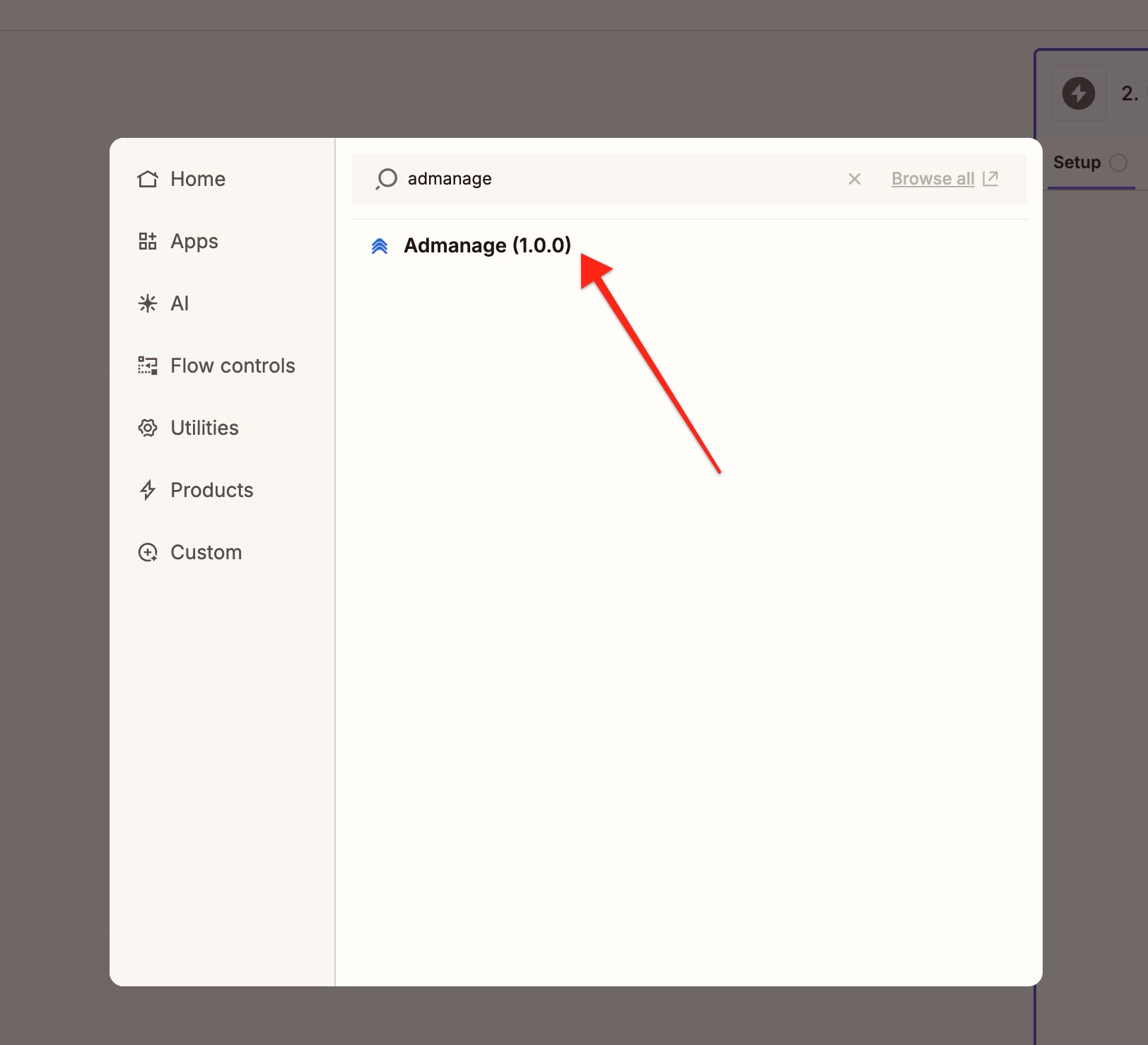
6. Click on the AdManage app to add it to your Zap
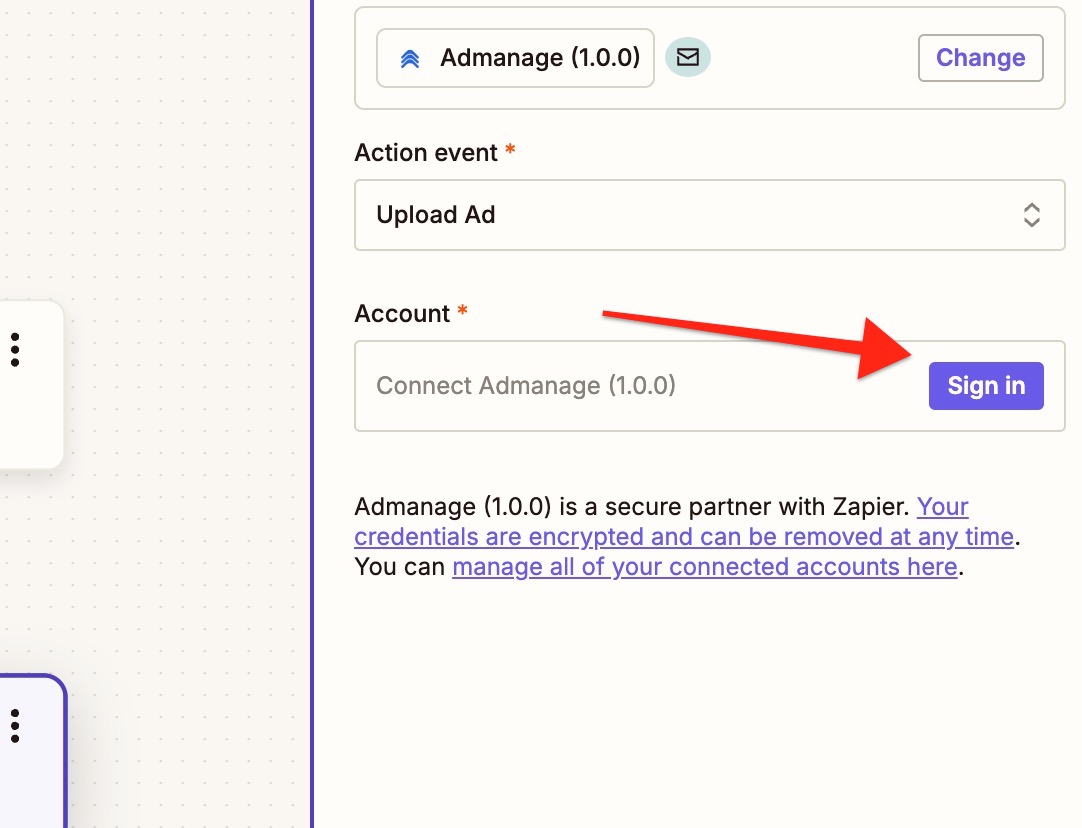
7. Connect your AdManage account by pasting your API key
8. Select the action you want to perform with AdManage
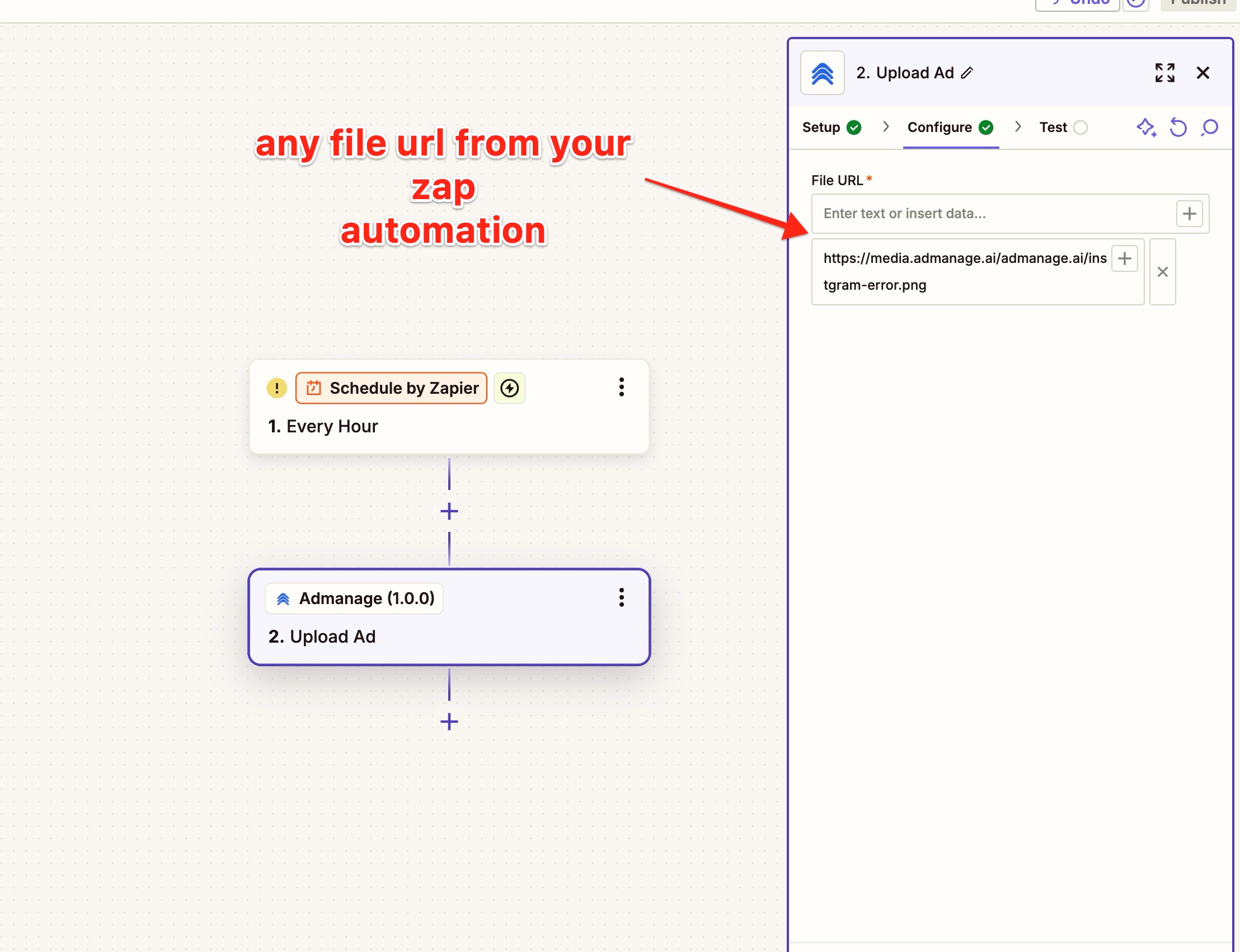
For more information about the upload endpoint and how to use it, check out our [API documentation](/api-references/upload).